
IPTV Smarters Pro is not in the Amazon Appstore in every country, so on most Firesticks you install it with the free Downloader app. The whole process takes about 10 minutes: allow apps from unknown sources, install Downloader, get the IPTV Smarters Pro APK and sign in with your IPTV details.
Follow the steps below with your Firestick remote in hand. The screenshots show each menu so you know exactly where to click.
To set up IPTV Smarters Pro on Firestick, you first need to change two device settings and install the Downloader app. Here is the quick overview:
Enable Unknown Sources and ADB Debugging
Go to your Firestick Settings > My Fire TV > Developer Options and switch on both Apps from Unknown Sources and ADB Debugging.
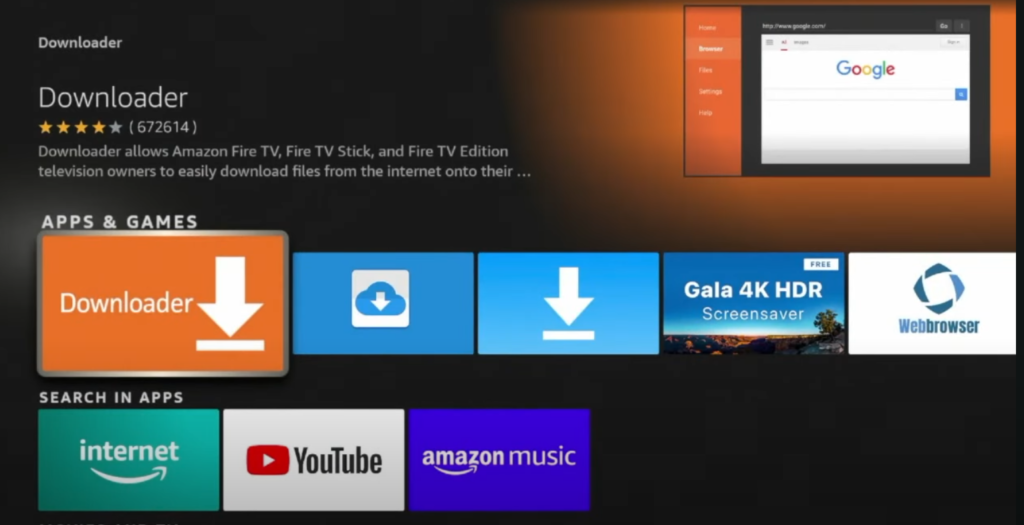
Install the Downloader App
From the Firestick home screen, open Search, type Downloader and select it from the results. Click Get or Download to install it.
Install the IPTV Smarters Pro APK
Open Downloader, enter the IPTV Smarters Pro APK URL and install the app.
Set Up IPTV Smarters Pro
Open the app, choose a layout and log in with your M3U playlist or your Xtream Codes API details (both are in the email we send after your purchase).
Once that is done, IPTV Smarters Pro is ready to play live TV, movies and series on your Firestick.
IPTV Smarters Pro is an IPTV player app. It works on Firestick, Android, iPhone and Windows PC, and plays the channels and movies from your IPTV subscription.
The app does not include any channels on its own. It is a player: you add your subscription details (M3U URL or Xtream Codes API) and it loads your channel list.
TV guide (EPG) so you can see what is on now and next.
Multi screen to watch several streams at the same time.
Movies and series (VOD) sorted by category.
Recording to save a programme and watch it later.
Before installing IPTV Smarters Pro, you need Downloader to install the APK file:
From your Firestick Home Screen, go to Search.
Type Downloader and select it from the results.
Click Get or Download to install the app.
Once it is installed, you will use Downloader to get the IPTV Smarters Pro APK.
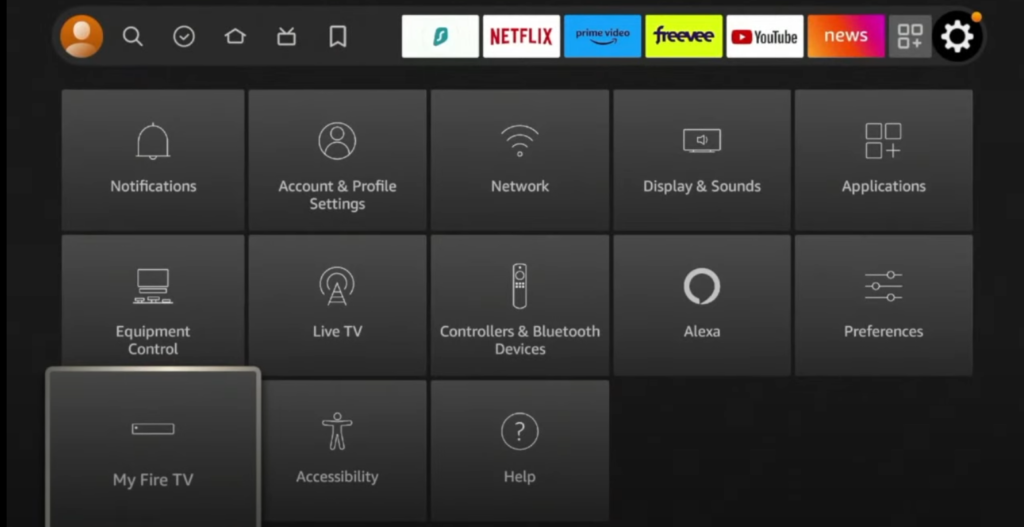
Navigate to the “Settings” menu on your Fire TV and select “My Fire TV“.
Click on “Developer Options” and enable the following settings:
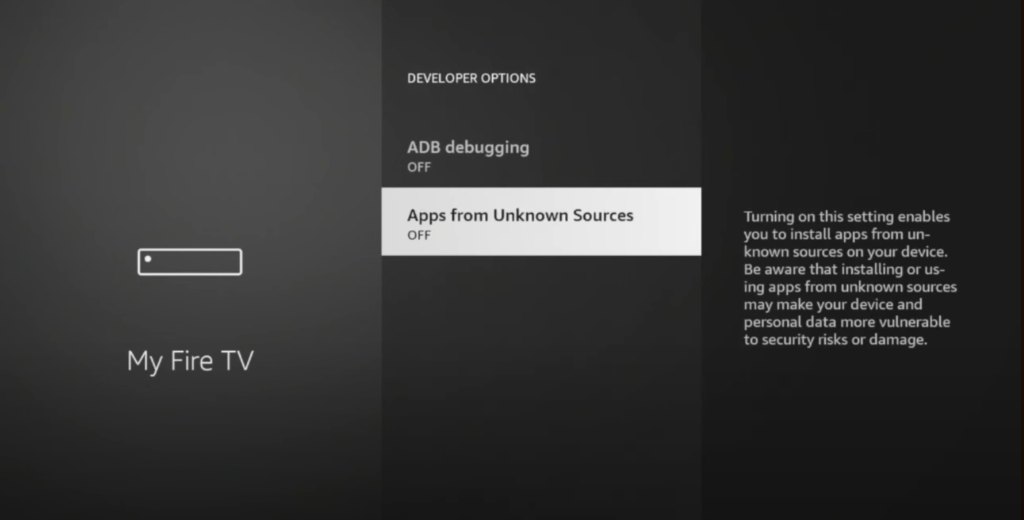
Before installing IPTV Smarters Pro, you need to change two settings on your Firestick:
Apps from Unknown Sources: lets you install apps that are not in the Amazon Appstore.
ADB Debugging: makes it easier to install and troubleshoot apps from outside the store.
You need both settings switched on to install IPTV Smarters Pro from an APK file.
Then open the Downloader app. The first time you open it, it asks for storage permission. Choose Allow so it can download and save APK files.
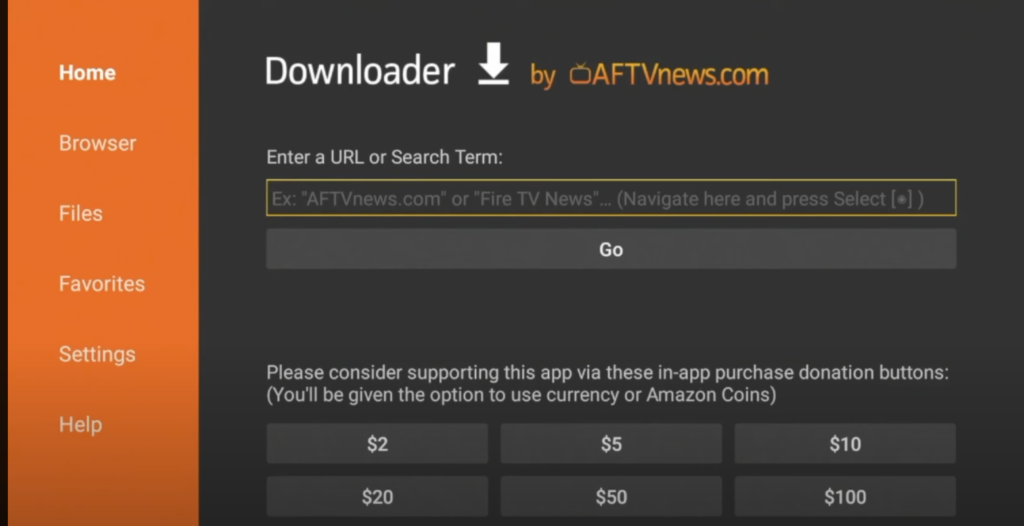
The Downloader app is the tool you’ll use to enter the URL of the IPTV Smarters Pro APK file. This makes it a crucial part of the sideloading process, since Firestick does not allow direct installation of apps outside the Amazon App Store.
Open the Downloader app on your Firestick.
In the URL field, type the official link to the IPTV Smarters Pro APK file, then select Go.
Wait for the APK file to download.
Once the download is complete, click Install when prompted.
After installation, choose Done to return to Downloader, then delete the APK file if you want to free up storage space (optional but recommended).
Now, IPTV Smarters Pro is installed on your Firestick and ready for setup.
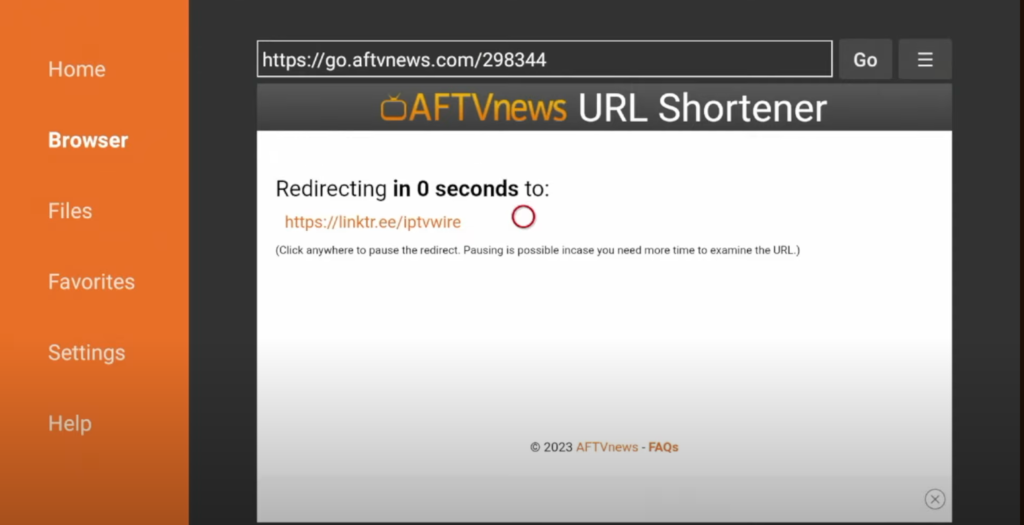
Enable Developer Options and allow Apps from Unknown Sources before starting.
Verify the APK URL to ensure you’re downloading from a trusted source.
Wait for the file to download completely before initiating installation.
Install the IPTV Smarters Pro APK when prompted.
Delete the APK file after installation to free up space on your Firestick.
Launch IPTV Smarters Pro and log in with your IPTV service credentials to begin streaming your favorite content.
If IPTV Smarters Pro isn’t working properly:
Update the app to the latest version.
Clear cache and data in your Firestick settings.
Double-check your IPTV account credentials.
Ensure your internet connection is stable.
If issues continue, uninstall and reinstall the app, then reconfigure your login details. This often resolves compatibility and streaming quality problems.
Yes, IPTV Smarters is safe to download as long as you obtain the APK from a reputable source. The app is widely used and regularly updated for both performance and security.
For extra protection and privacy while streaming, it’s recommended to use a VPN.